

How to Get Your Business on Google Maps (Step-by-Step Guide)
When someone nearby searches for “coffee shop near me” or “plumber open now,” Google shows a map with a few local businesses at the top. If yours isn’t one of them, those customers go to your competitors.
Getting on Google Maps is free, and you can do it in an afternoon. This guide shows you how to check whether you’re already listed, add your business if you’re not, and claim it so you control what customers see.
Local searches are often made by people ready to act. They want directions, a phone number, or opening hours, and they usually decide within minutes. A complete listing puts your address, reviews, and contact details right in front of them at that moment.
Google Maps vs. Google Business Profile: What’s the Difference?
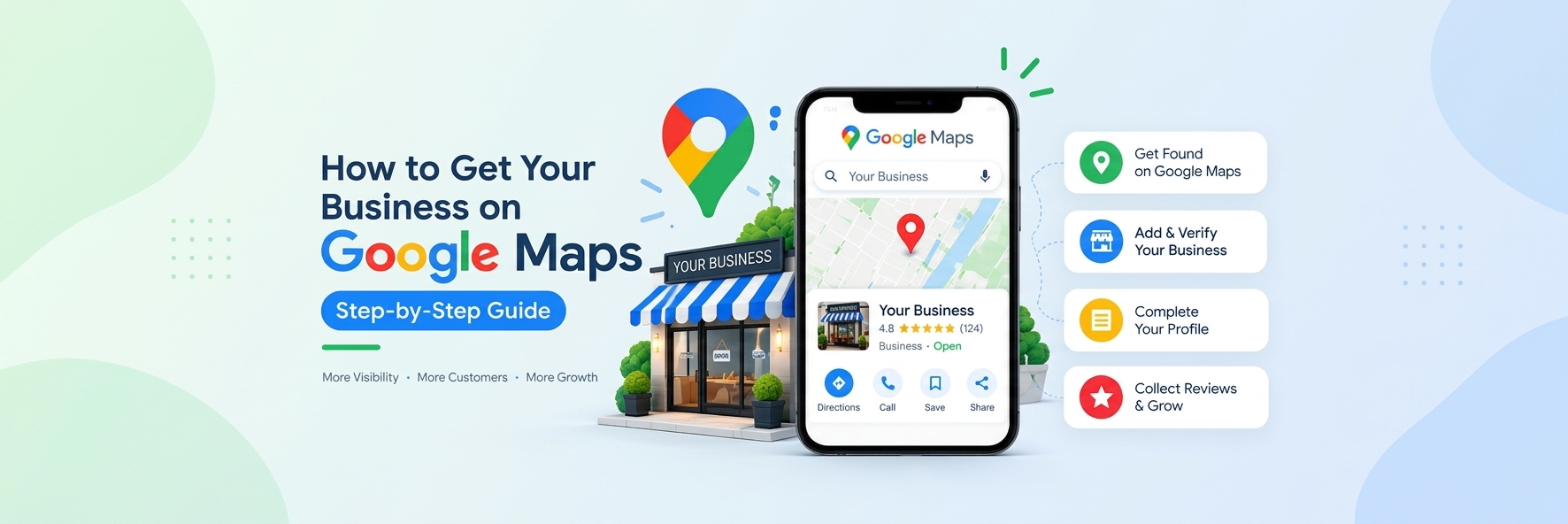
Google Maps is where customers find locations, get directions, and read reviews. Google Business Profile (formerly Google My Business) is the free tool you use to manage how your business appears on Maps and in Google Search.
Maps shows customers where you are. Your Business Profile controls what they learn about you: hours, photos, services, and reviews. You need both working together. If you’d rather skip the setup work, our team can handle it with our Google Business Profile setup service.
Step 1: Check If Your Business Is Already on Google Maps
Google sometimes builds listings automatically from public information, so yours may already exist. Before creating anything:
- Open Google Maps on your phone or at maps.google.com.
- Search your business name and city.
- Check whether a listing appears with the correct name and address.
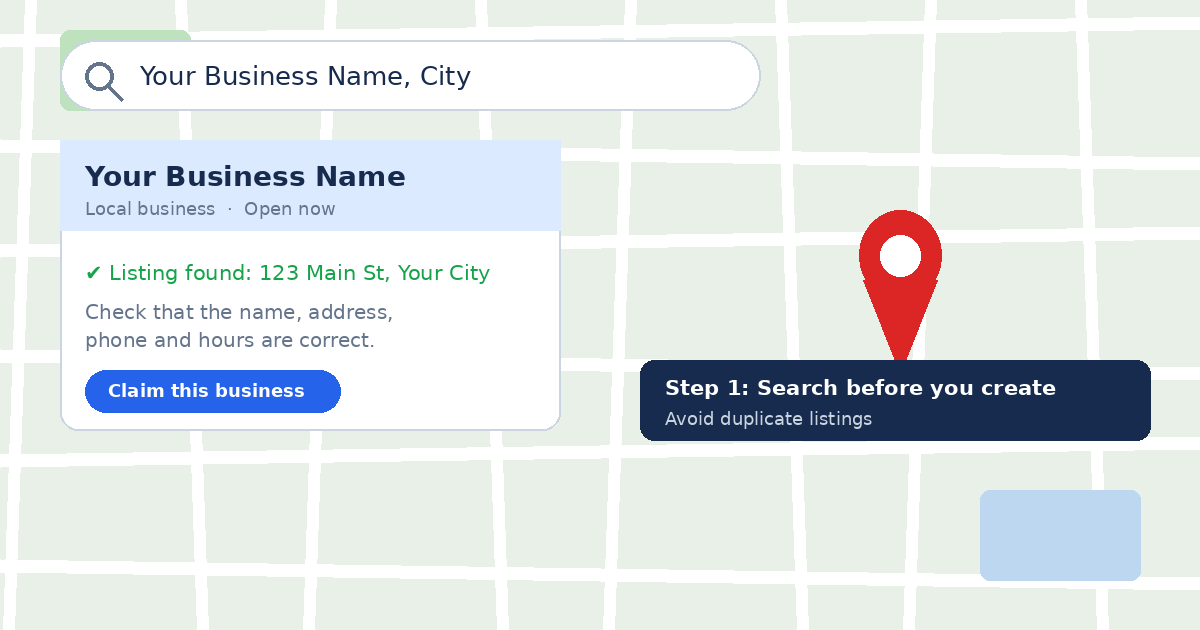
If it appears, claim it (Step 3) and don’t create a duplicate. Google’s guidelines say there should be only one profile per business. If it doesn’t appear, move on to Step 2.
Step 2: Add Your Business to Google Maps
If you can’t find your business, add it yourself. Google walks you through the process in its guide to creating a Business Profile.
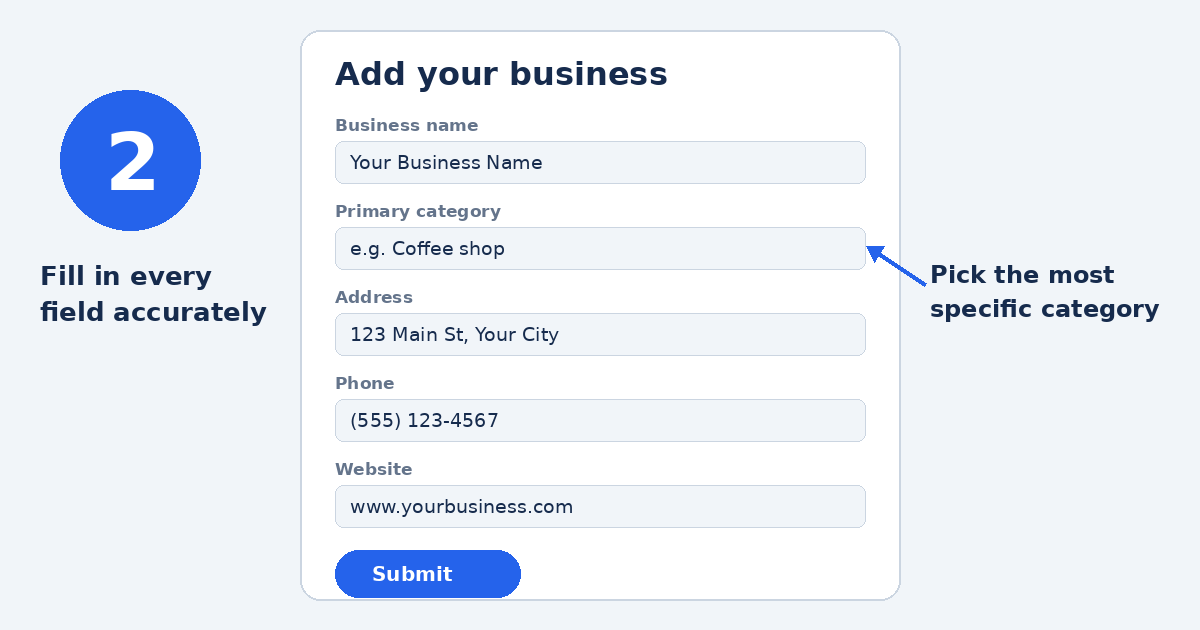
- Search for your business in Maps and choose “Add a missing place,” or use “Add your business” from the menu.
- Enter your business name exactly as it appears on your signage and website.
- Choose your primary category.
- Add your address, phone number, and website.
- Submit the listing.
Choose Your Category Carefully
Your primary category tells Google what kind of business you are. If you run a coffee shop, choose “Coffee shop” and not a broad label like “Restaurant.” That way people searching “coffee near me” can find you, not just people who already know your name. Pick the most specific category that fits your main service.
Service-Area and Hybrid Businesses
- Service-area businessestravel to customers (plumbers, cleaners). If you have no storefront, hide your address and list the areas you serve.
- Hybrid businessesserve customers at their location and also travel to them. You can show your address and list a service area.
Step 3: Claim and Verify Your Listing
Adding or finding your listing is only half the job. Until you verify it, you can’t edit your business info or respond to customers, and inaccurate details can stay live.
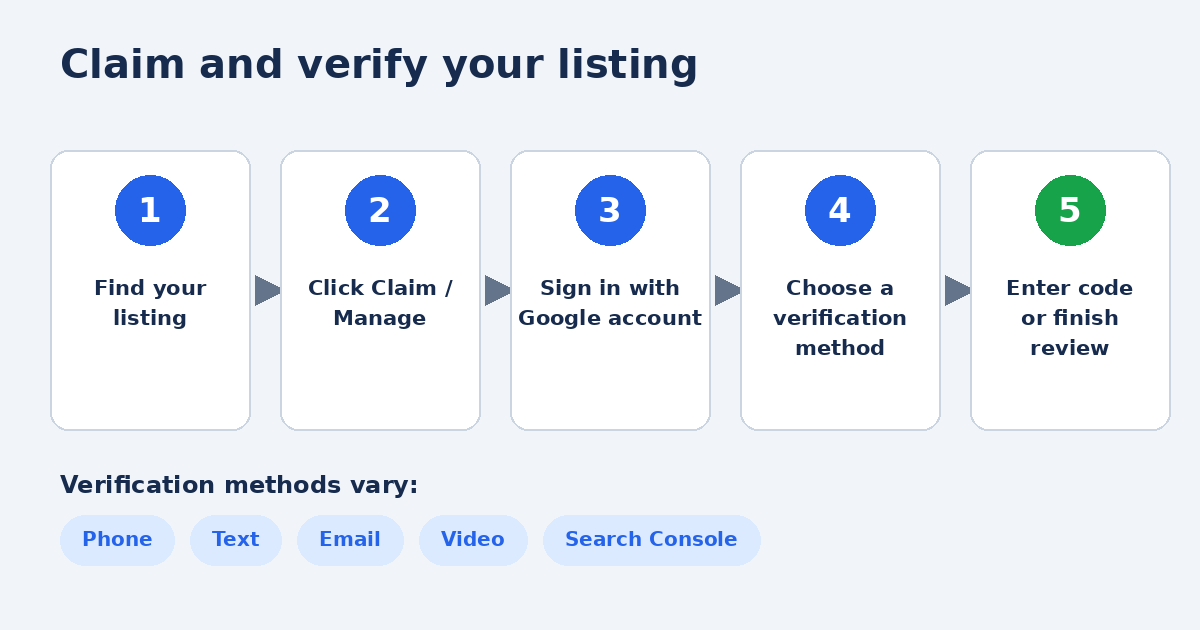
- Find your business on Google Maps and select “Claim this business” or “Manage this business.”
- Sign in with the Google account you want to own the listing.
- Choose a verification method and follow the on-screen steps.
Available methods vary by business and may include phone, text, email, or video. Google explains each option in its verification guide. If you get stuck, our GBP setup specialists can walk you through it.
Step 4: Complete Your Profile So You Get Found
A bare-bones listing may appear on Maps, but it rarely stands out. After verifying, fill in every section you can.
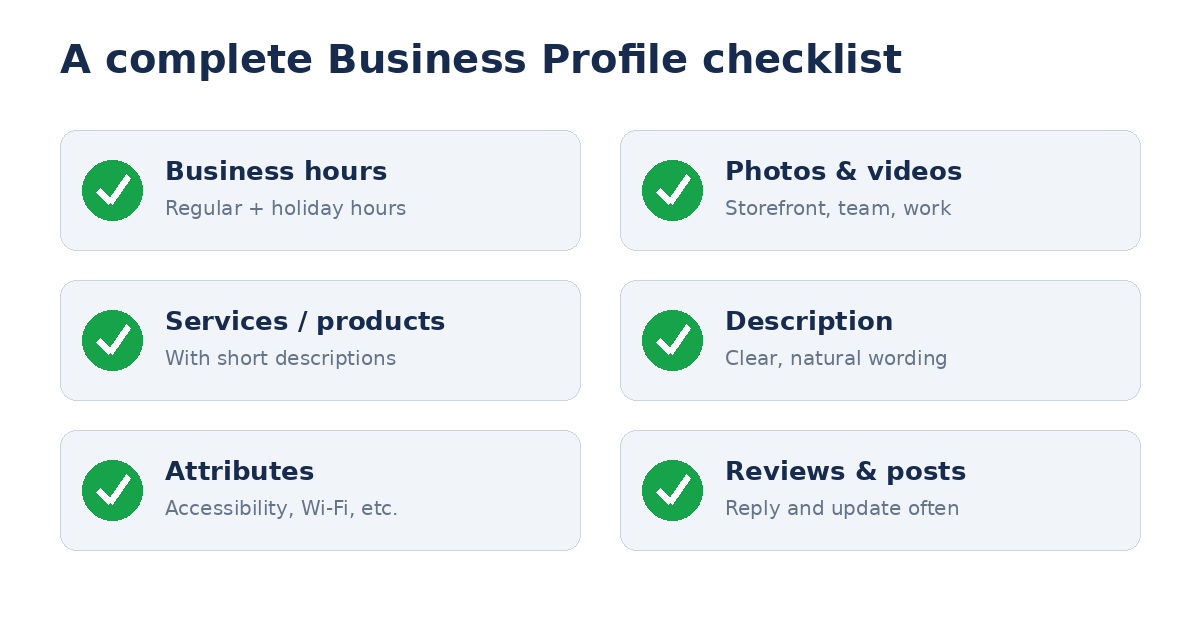
- Hours:include holiday hours and keep them current.
- Photos and videos:show your storefront, team, products, and finished work.
- Services or products:list what you offer with short descriptions.
- Description:explain what you do in natural language, with no keyword stuffing.
- Attributes:mark features like wheelchair access or online appointments.
Step 5: Collect Reviews and Keep Your Listing Active
Google says review count and ratings can influence local ranking, and customers read reviews before they visit. Ask happy customers to leave one, share your review link by text or email, and reply to every review, good or bad. Never buy reviews or offer incentives.
Google also notes that local results are based on relevance, distance, and prominence, and that you can’t pay for a better ranking. Its guide on improving your local ranking is worth a read.
Common Mistakes to Avoid
- Creating duplicate listings.Always search first.
- Keyword-stuffing your business name.Use your real name. Google’s guidelines for representing your business warn this can lead to suspension.
- Choosing the wrong category.It affects which searches you appear in.
- Skipping verification.You can’t manage an unverified listing.
- Setting it and forgetting it.Update hours, photos, and replies regularly.
Frequently Asked Questions
Is it free to add my business to Google Maps?
Yes. Creating and managing a Business Profile is free, and Google states there is no way to pay for a better local ranking.
How long does it take to appear on Maps?
You can create a listing in minutes. Verification is the slower part, and Google may need to review it for several business days.
Can I list my business without a storefront?
Yes. Service-area businesses hide their address and show the areas they serve instead.
Why isn’t my business showing up on Maps?
The most common reasons are an unverified listing, incomplete information, or a wrong category. Check that your details are accurate and that you’ve finished verification.
What if someone else has already claimed my business?
Google lets you request ownership of the profile during setup. If you get stuck, we can help with that too.
Final Thoughts
Getting on Google Maps comes down to three steps: check whether you’re listed, add your business if you aren’t, and claim it. After that, a complete profile and steady reviews help you stand out to nearby customers.
If you’d rather have experts handle it, SearchBerg can help. Our Google Business Profile setup gets your listing created, verified, and optimized from day one, so you can focus on running your business.